Floor Plan Module
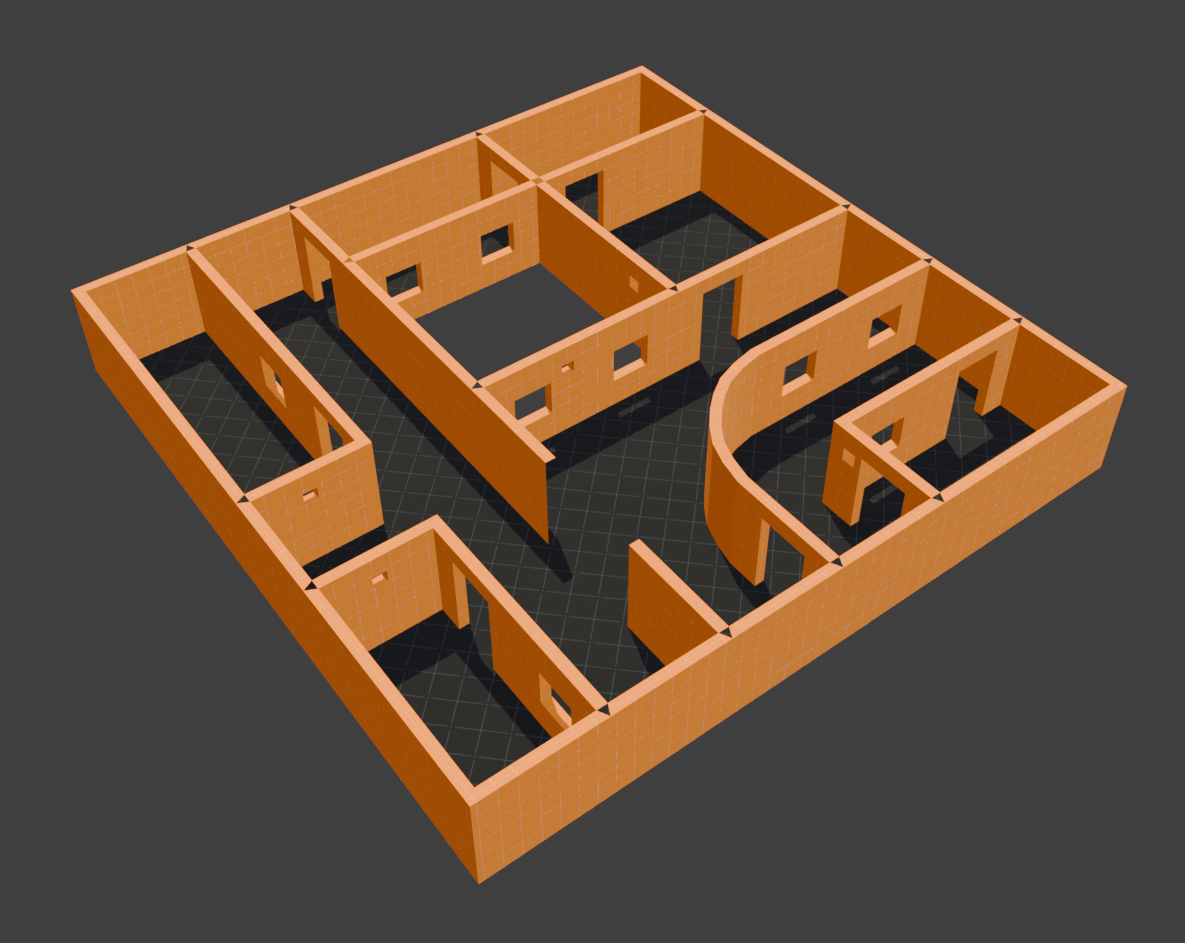
Liminal Editor generates wall meshes from flat 2D floor plan meshes. Create a floor, prepare topology and click one button to generate walls. The tool serves as a way to quickly block-out interior such as house or office spaces. Creating floor plans in Blender can be a time consuming and tedious task. This tools aims at simplifying the process. It is useful for quick iteration of level layout ideas, blocking out regular spaces, creating gyms(test levels), etc.
Features: * Paint floor edges to generate walls from them * Adjustable wall thickness and height * Apply default Wall material with automatic triplanar UV mapping * Easily define and add openings to your floor plan.
Creating a Floor Plan
- Floor Plan›Create new floor plan - inserts a 4 m × 4 m starter mesh at the 3D cursor, already marked as a floor plan. It is split into a 3 × 3 grid with its outline marked as walls, so Build gives you a room straight away and the inner edges are ready to paint.
- Or select any existing mesh and click Make Floorplan.
Note
A floor plan should be flat on the world XY plane and must have faces. Edges without a face on either side are ignored by the generator. Walls stand on the plan's own world height, wherever its origin is.
Per-plan settings in the Object-mode Floor Plan panel:
| Setting | Description |
|---|---|
| Wall Height | Height of generated walls in metres |
| Wall Thickness | Wall thickness in metres, centered on the source edge |
| Material | Scene-wide material assigned to all generated walls (optional) |
Interactive tools
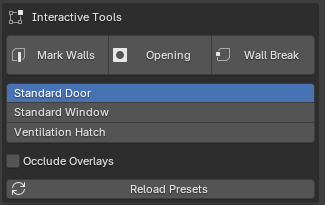
You can choose from three floorplan submodes: Markings Walls, Openings and Wall Break. Each described below.
Regardless of the active submode you can quickly regenerate floorplan with the Shift⇧+R hotkey
Marking Walls
The "Mark Walls" mode allows painting floor edges and decide where walls should be generated. Green edges generate walls, blue - don't. Hold down left button and move mouse to quickly "paint" edges.
Edges you haven't painted don't generate walls, including edges added by subdividing or extruding the plan. A mesh adopted with Make Floorplan builds nothing until you paint its walls. Floor plans made before v0.8 keep their walls as they were. Press Esc or Right click while hovering an edge to exit this mode
Openings
Place openings to mark doors or windows. These are rectangular shapes that you place directly on walls. Once you rebuild, geometry will take openings into acccount. You can Quickly switch between different opening presets with Ctrl⌘+Wheel. When placing, openings have snap points at 10% edge length increments. Hold Ctrl⌘ to place freely. To remove opening, hover mouse over opening and press X.
Openings are placed from presets. This makes it convenient to use openings that are constrained in size due to game requirements. For example if door object in your game is 1.8 meters wide, you can easily make door openings same width without any effort.
You can manage openings presets in the side panel Lm Toolkit -> Floorplan -> Opening Presets. They are saved in your project's directory. You can modify existing presets and after clicking save button all existing openings will update as well. Rebuild (Shift⇧+R) to reflect those changes in actual geometry.
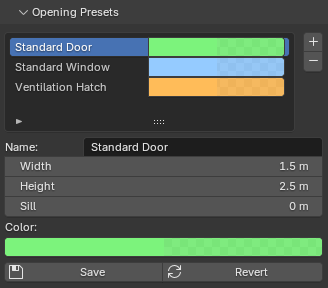
Presets live in <project>/_blender/floorplan.json and load automatically with the game configuration. They can be edited without leaving Blender: expand the Floor Plan›Opening Presets subpanel, click Load Presets for Editing, and use the list (+/−) and the field form. Save validates names (unique, non-empty), writes the JSON and refreshes the placement UI; Revert reloads from disk.
Wall Breaks
A wall break forces a wall run to split at a vertex, producing separate wall objects on each side. Since collision/tag changes split runs automatically, breaks are for everything else - separating walls for scripting, manual material edits, or export granularity.
- Object Mode: Interactive Tools›Wall Break, then click vertices or edges (edges are split first), same snapping and rules as opening placement.
- Edit Mode: select vertices → Mark Break / Clear.