Creating Entities
To place a custom entity in Blender, you first need to define and export it from your Godot project. This page covers both authoring paths and all the property and gizmo features available.
Two Authoring Paths
There are two ways to expose an entity to Blender. Both produce identical output.
| Entity Wizard | Code | |
|---|---|---|
| How | Create an EntityDefinition .tres and configure it in the wizard |
Override _export_entity_props() in the entity script |
| Best for | Non-programmers, standalone assets, quick iteration | Properties needing runtime logic, inline providers, tight script coupling |
| Stored in | .tres file |
GDScript, version-controlled with the entity |
Code-path entities still appear in the wizard sidebar, but as read-only entries. To edit them, open the source script.
Entity Wizard
The Entity Wizard lives in the Entities tab of the Godot main screen. It controls which properties an entity exposes to Blender and which gizmos are drawn for each instance in the viewport.
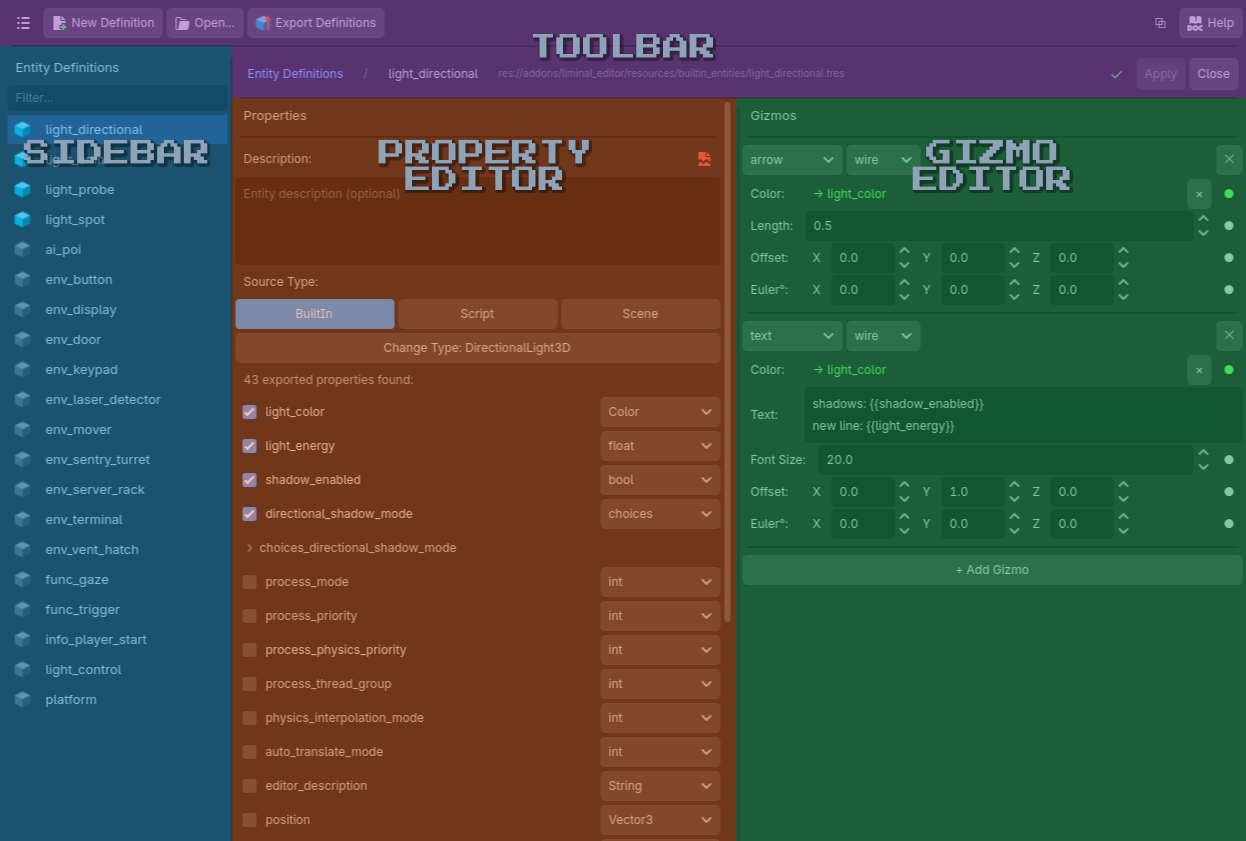
Step 1 - Pick a Source
Click New Definition in the toolbar and choose where to save the new EntityDefinition .tres.
Note
Save entity definitions inside paths scanned by Liminal during export. Configure these in Project Settings›Liminal Editor›Entity Directories.
Then pick one of three source modes:
- BuiltIn - select a class from Godot's
ClassDB(e.g.OmniLight3D,Area3D). All editor-visible properties are scanned. - Script - pick a
.gdfile. Only@exportproperties are scanned. - Scene - pick a
.tscnfile. The wizard scans@exportproperties on the root node's script.
Script and Scene modes store a UID reference internally, so the .tres stays valid even if the script or scene is moved.
Step 2 - Select Properties
The wizard lists every property found on the source. Check the ones to expose in Blender. Checked properties sort to the top of the list automatically, so frequently used props are always visible without scrolling.
Step 3 - Apply
Click Apply. The resource is saved and the manifest can be regenerated.
Property Types
All basic property types are supported. Blender's property inspector picks an appropriate widget for each.
| Type | Editor in Blender |
|---|---|
bool |
Checkbox |
int / float |
Number field |
string |
Text field |
Color |
Color picker |
Vector3 |
Three-component number field |
source |
Text field (the entity's name) |
destination |
Text field with Pick button |
choices |
Dropdown |
Source and Destination
source and destination are special string types that link entities together.
- A source property is the entity's name. Other entities address this entity by typing its source value into their destination field.
- A destination property points to another entity by name.
When a destination property is set, Liminal draws a 3D arrow in the viewport from the source entity to the destination entity. This visualises the logic graph and keeps wiring legible at a glance.
The Pick button next to a destination field opens a dropdown listing every source name currently in the scene.
Example. A lever entity with a destination property pointing at a door entity. Pulling the lever in the game opens the door.
Note
Liminal does not impose any architecture on how gameplay mechanics consume these connections. The names travel into Godot as plain string properties; how to handle them is up to your gameplay code. See the Liminal Editor Showcase project for implementation examples.
Choices
A choices property shows a dropdown in Blender populated at export time. The dropdown is most useful for enums, but you can drive it with any provider that returns a list of label/value pairs.
When the .lm file is imported, Liminal resolves the stored label back to its Godot-native value using a snapshot baked into entities.json - no provider code runs at import time.
Built-in Providers
| Provider | What it returns |
|---|---|
LMChoicesStatic |
A fixed, manually entered list. Good for states, modes, difficulty tiers, or any closed set |
LMChoicesResourceType |
Every resource in a directory whose type matches a class name (built-in or custom). Subclasses included |
LMChoicesFileGlob |
Every file in a directory matching one or more glob patterns. Returns either raw res:// paths or loads them as Resource |
Example. An ambient sound entity exposes a clip property as choices. The provider scans an audio assets directory for .ogg and .wav files. Level designers pick a clip from the dropdown in Blender.
Custom Providers
Subclass LMChoicesProvider and override get_choices() to return an array of { "label": String, "value": Variant } dictionaries. Save as a .tres file and assign it to any choices property.
class_name MyCustomProvider extends LMChoicesProvider

func get_choices() -> Array[Dictionary]:
    var result: Array[Dictionary] = []
    for f in DirAccess.get_files_at("res://assets/sfx/"):
        result.append({ "label": f.get_basename(), "value": "res://assets/sfx/" + f })
    return result
Note
Providers are manifest-generation-only. They run when you export definitions from the Godot editor. The snapshot baked into entities.json is what the importer reads.
Gizmos
Gizmos are visual shapes drawn in the Blender viewport to represent an entity's spatial influence, range, or orientation. They are purely cosmetic - they help the level designer see what an entity does without cluttering the scene with real geometry.
Typical uses: a light's radius, a trigger zone's volume, a camera's frustum, a turret's aim cone, a label showing a live property value.
Gizmos live in the entity definition, not in the scene. Adding or changing a gizmo declaration and reloading the manifest in Blender updates every instance at once.
Defining Gizmos
In the wizard's right column, click + Add Gizmo to append a row. Each row has:
- Type dropdown - the shape to draw (see Gizmo Types)
- Style dropdown -
wire(default) orsolid.solidadds a translucent filled body beneath the wire outline - Color field - a hex tint. Click to open a color picker, or bind it to a property
- Fill α field - fill opacity (
0–1) forsolidstyle and thevolumetype. Defaults to0.25 - Type-specific parameter fields - depend on the gizmo type
- Offset X›Y›Z - translation in entity-local Godot space
- Euler° X›Y›Z - rotation offset in entity-local Godot space (XYZ order, degrees)
An entity can have any number of gizmos. They are drawn independently, each with its own type, size, color, and offset.
Gizmo Types
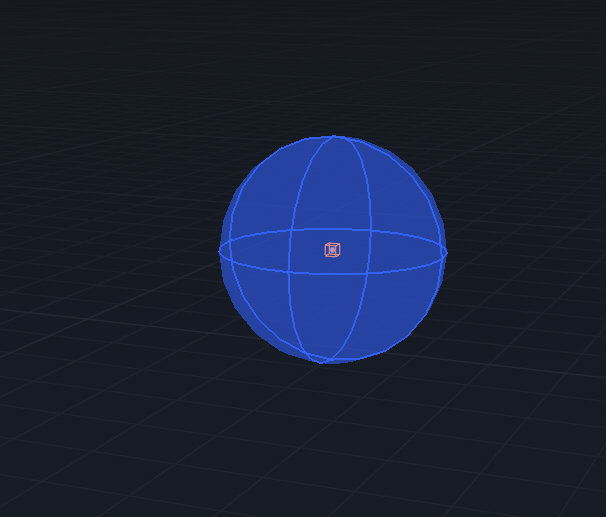
sphere
A wireframe sphere centred on the entity origin.
| Field | Default | Description |
|---|---|---|
radius |
1.0 |
Sphere radius (units) |
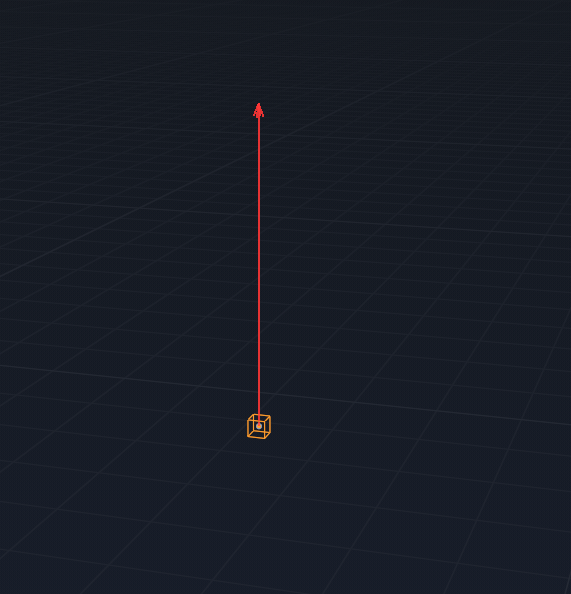
arrow
A line with an arrowhead pointing along the entity's forward direction (-Z in Godot / +Y in Blender). Use this for facing, aim direction, or signal targets.
| Field | Default | Description |
|---|---|---|
length |
1.0 |
Arrow shaft length (units) |
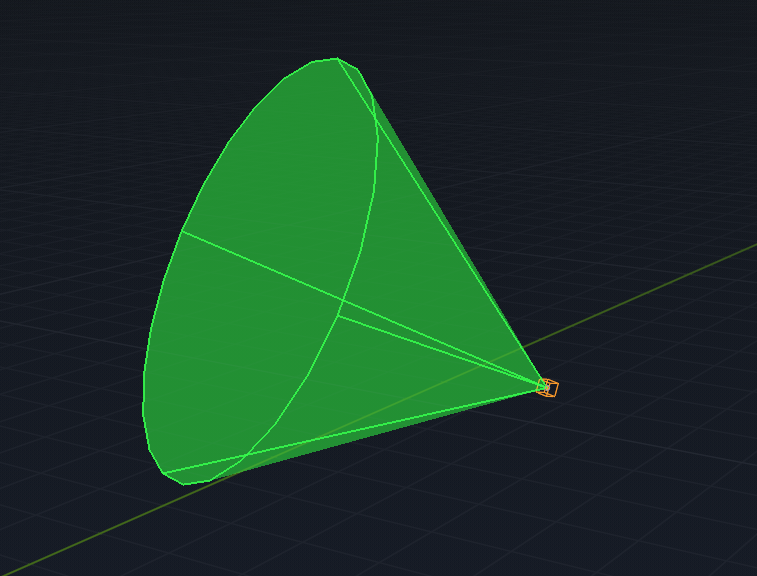
cone
A cone opening along the entity's forward direction. Useful for spotlights, view cones, and detection angles.
| Field | Default | Description |
|---|---|---|
length |
1.0 |
Cone depth (units) |
angle |
30.0 |
Half-angle (degrees) |
box
A wireframe axis-aligned box centred on the entity origin (in local space).
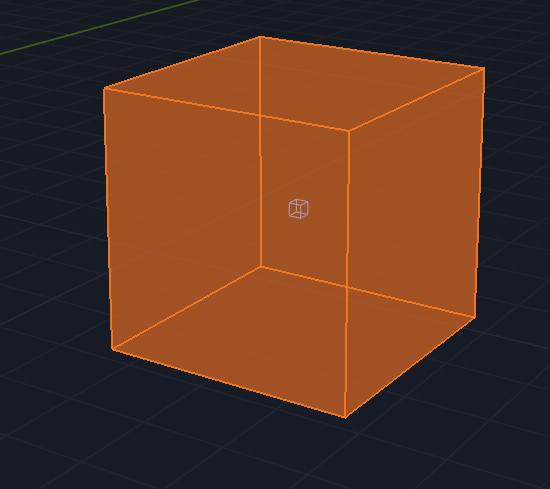
| Field | Default | Description |
|---|---|---|
size |
0.5 |
Half-size along each axis (uniform) |
frustum
A camera-style frustum: near and far planes connected by four corner rays. Useful for cameras and projectors. Assumes a 16:9 aspect ratio.
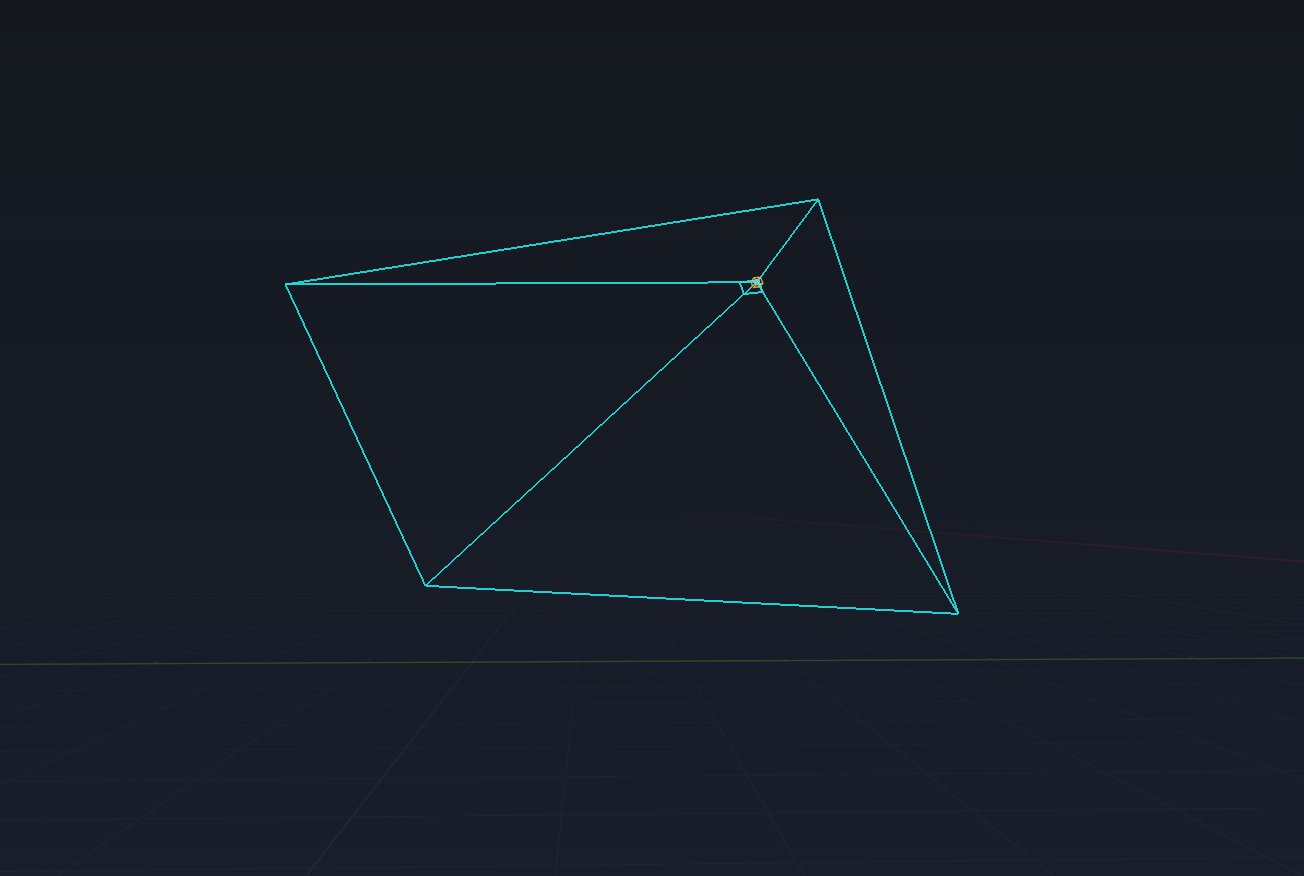
| Field | Default | Description |
|---|---|---|
fov |
60.0 |
Vertical FOV (degrees) |
near |
0.1 |
Near plane distance (units) |
far |
10.0 |
Far plane distance (units) |
billboard
A square at the entity origin that always faces the viewport camera, whichever way you orbit. Use it for point lights, audio sources, spawn points and other entities with no direction of their own, where a sphere would swallow the space around them.

| Field | Default | Description |
|---|---|---|
size |
0.3 |
Half-size of the square (units) |
Texture |
none | Image drawn on the square — any texture in your project |
alpha |
1.0 |
Opacity of that image (0–1) |
Give it a Texture and the image is the gizmo: it fills the square and no outline is drawn around it, so a spawn point can carry a spawn icon and an ambient sound a speaker. Color tints the image, so a greyscale icon takes the class colour. Without a texture you get the plain square — wire, or translucent under Style solid.
The square keeps a fixed size in world units, so it shrinks with distance like every other gizmo.
volume
A translucent fill of the entity's own mesh body — not a procedural shape. It follows the actual geometry you author (including modifiers and edit-mode changes), so it's the right choice for trigger zones, ambient regions, and other brush-shaped volumes where you need to see the exact extent. Only renders for volume entities; on a non-volume entity it draws nothing. The wire outline comes from the object's own wireframe display.
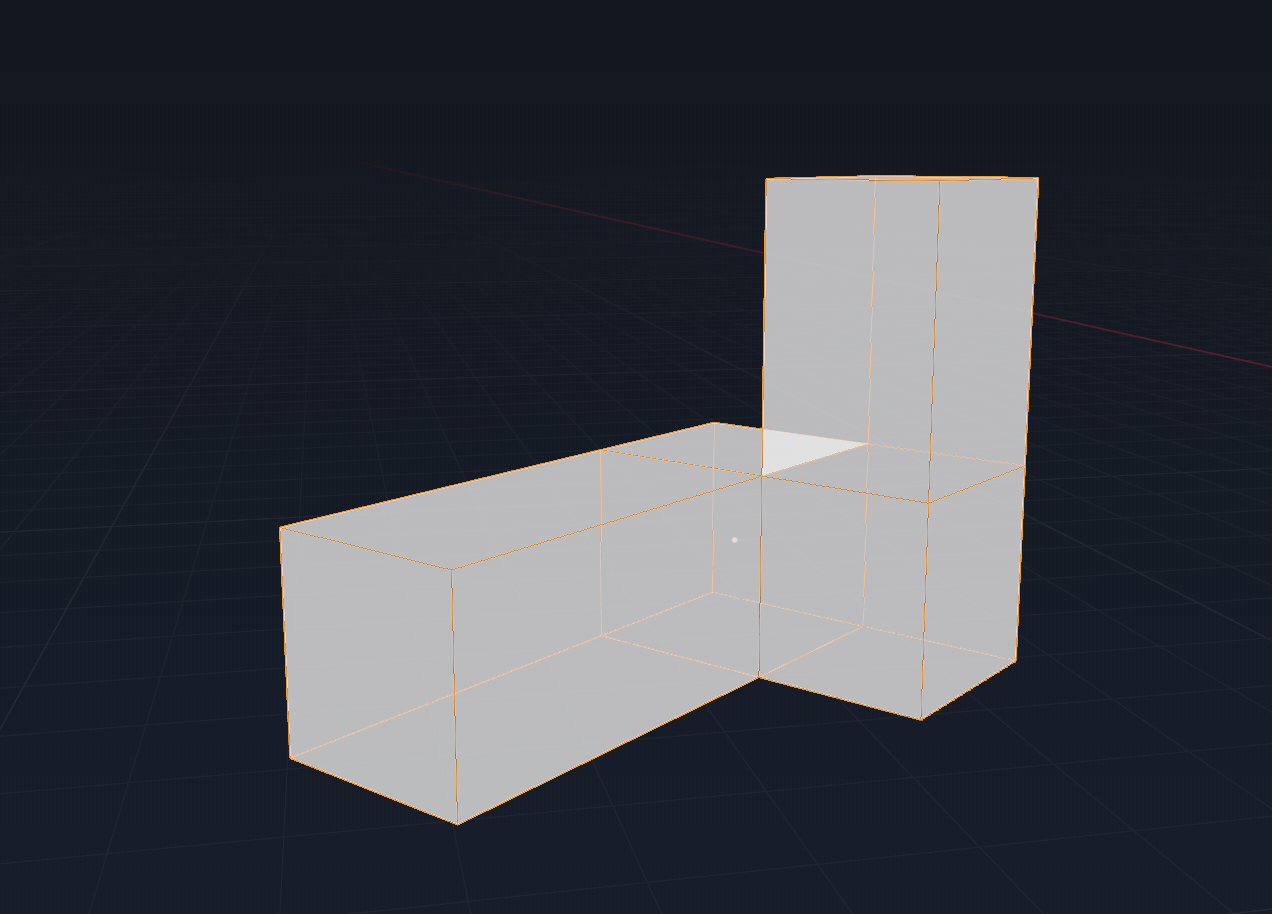
| Field | Default | Description |
|---|---|---|
color |
white | Fill tint. Click to open a color picker, or bind it to a property |
alpha |
0.25 |
Fill opacity (0–1) |
Texture |
none | Tiling texture drawn over the fill — any texture in your project |
Texels/m |
128 |
Texture density in texels per metre |
Volume textures. Pick any texture from your project and the fill carries it as a tiling label instead of a flat tint, so the volume announces what it is at a glance — a trigger brush reads TRIGGER from across the level. This belongs to the entity type, set once here: every volume of that class shows it, and level designers never assign anything.
The texture is projected from the volume's own object space and blended across all three axes, so it lands evenly on walls, floors and caps whatever shape the brush is, and stays locked to the brush when you rotate it.
Texels/m sets density in texels per metre rather than repeats, so the label
comes out the same physical size on a doorway-sized trigger and a hangar-sized
one. Lower the value to make the lettering larger.
The tint from color multiplies the texture, so per-class colour coding still
works, and a greyscale tile takes the class colour cleanly. A volume with no
texture set is unchanged.
Sync copies each texture a definition references into the Blender workspace, so any texture in your project works — including ones you keep with your own art.
Making your own labels. The plugin ships a set of ready volume textures
(TRIGGER, CLIP, HURT, WATER, LADDER, SOUND, NAV BLOCK) under
addons/liminal_editor/gizmo_textures/. For a label of your own, create a new
LMIconTexture resource anywhere in your project and set its label — it
generates the tile for you, so no image editor is involved:
| Property | Description |
|---|---|
label |
The word stamped across the tile |
size |
Tile resolution in pixels |
ink_color |
Lettering colour — white by default so the gizmo colour tints it |
text_fill |
How much of the tile width the lettering may use |
text_border_width |
Halo drawn behind the letters, in pixels, clearing stripes underneath for readability; 0 disables it |
text_border_color |
Halo colour |
stripe_coverage |
Hazard stripe thickness; 0 removes the stripes |
stripe_count |
Stripe repeats across the tile |
stripe_color |
Stripe colour |
stripe_flip |
Mirrors the diagonal |
border |
Draws a frame inside the tile edge |
border_color |
Border colour |
border_width |
Border thickness in pixels |
border_margin |
Gap between the tile edge and the border |
background_alpha |
Opacity of the tile's base fill, behind the stripes and lettering |
Keep your own resources outside addons/ — plugin folders are replaced when you
update Liminal Editor.
text
A screen-space label drawn at the entity's location (offset by offset if set), in the gizmo's color.
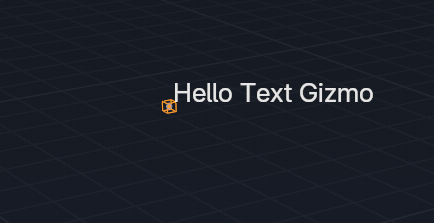
| Field | Default | Description |
|---|---|---|
text |
- | The string to display. Supports {{prop_name}} template tokens |
size |
11 |
Font size (pixels) |
path
A polyline connecting the entity's child objects with line segments. Use it for patrol routes, waypoint chains, and any ordered sequence of points authored as children of the entity. Needs at least two children to draw anything; unlike the other gizmos it ignores offset/euler and instead reads each child's world position.
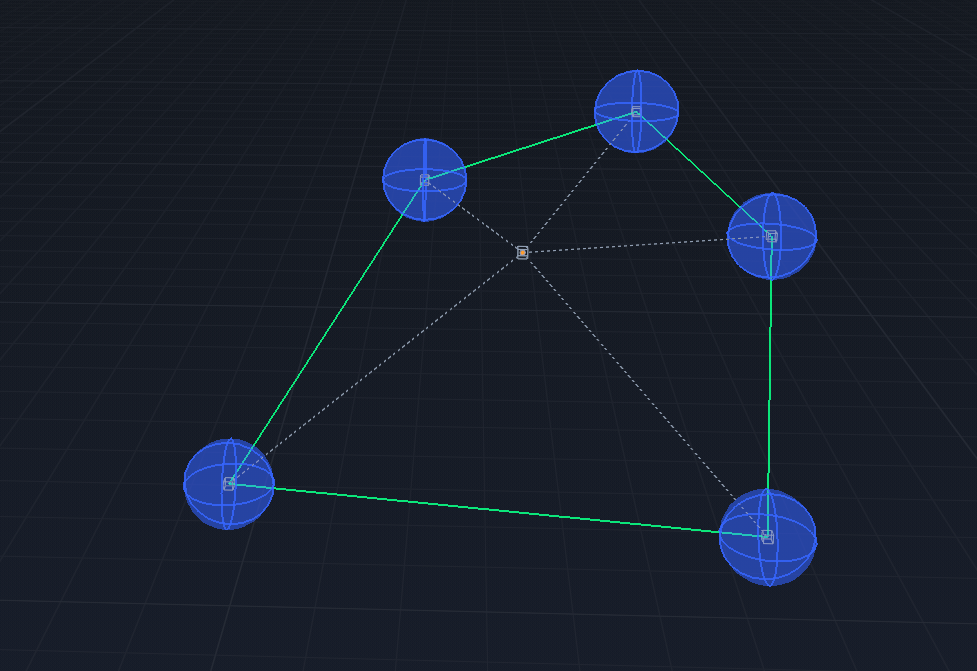
| Field | Default | Description |
|---|---|---|
mode |
hierarchy |
Child ordering. hierarchy follows the children's order in the scene; nearest walks greedily from the first child to the closest unvisited one each step |
closed |
false |
When true (and there are at least three children), connects the last child back to the first to form a closed loop |
Gizmo Bindings
Numeric and color gizmo fields can be bound to a checked entity property so the gizmo reflects the value set on each instance rather than a fixed literal.
Binding via Drag-and-Drop
Each gizmo property has a small white dot beside it.
In Godot
- Check the property you want to bind in the Properties column.
- In the Gizmos column, click and drag from the dot of the gizmo field.
- Drop onto the target property row. Valid drop targets highlight blue while you drag.
When a binding is active, the field's input control is replaced by a green → prop_name label. Click the × button to clear the binding and return to a literal value.
If the bound property does not exist on the object, or its value cannot be converted to the expected type, the field falls back to its default.
Text Template Tokens
The text gizmo's Text field uses {{prop_name}} template syntax instead of dot bindings. Any number of tokens can appear in the same string:
"Range: {{range}} m"          → "Range: 5.0 m"
"{{name}} ({{state}})"        → "door_01 (OPEN)"
If a referenced property does not exist on the object, the token is left as-is.
Code Path
For entities that manage their own exports in script, override _export_entity_props() and optionally _export_entity_gizmos():
func _export_entity_props() -> Array[Dictionary]:
    var ret = super()
    ret.append_array([
        { "name": "delay" },
        { "name": "target",     "type": "destination" },
        { "name": "targetname", "type": "source" },
        { "name": "sound_cue",  "choices": preload("res://my_sound_provider.tres") },
    ])
    return ret

func _export_entity_gizmos() -> Array:
    return [
        {"type": "sphere", "bindings": {"radius": "detection_range"}, "color": "#FF4400"},
        {"type": "arrow",  "length": "2.0"},
        {"type": "text",   "text": "Range: {{detection_range}}"},
    ]
Rules for _export_entity_props():
- Every entry must have a
"name"key matching a property on this node. "type"overrides the inferred type. Valid values:"source","destination","choices", or any Godot type name string."choices"takes anLMChoicesProviderinstance (preloaded.tresor constructed inline).- Omit both
"type"and"choices"to use the property's inferred Godot type. - For Object-typed properties (e.g.
@export var preset: SoundPreset), a"choices"entry is required.
Applying Changes
Any change to an entity definition - via the wizard or in code - requires regenerating the manifest before Blender sees it.
In Godot
- In the Godot editor, click Export Definitions in the wizard toolbar (or Tools›Liminal Editor›Sync Workspace).
In Blender
- Open the LM Config panel and click Reload Manifest.