Asset Packs
Asset Packs is a new feature added in Liminal v0.6. It keeps reusable pieces of geometry in a separate .blend file that any number of level files can link. For reuse inside a single level file, plain collection instances are enough.
This tool serves dual purpose: 1. Creating prefabs that you wish to use in multiple blend files 2. Importing external assets into the project
Under the hood, Liminal Asset Packs are just regular Blender Collection Instances linked from another .blend file. Liminal builds on top of this feature but significantly improves workflow ergonomics.
Creating Asset Packs
There is a Side Panel LM Asset Packs that will help you build your asset pack. It is folded by default because you won't be using it during regular level design work.
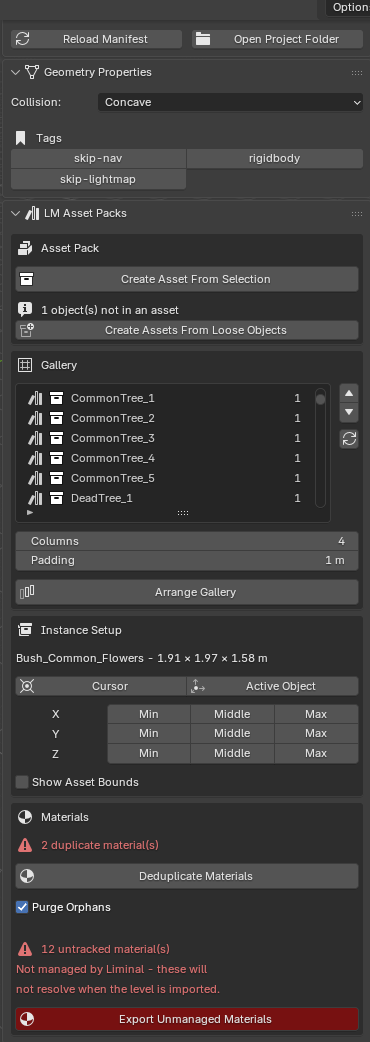
Asset Pack section
The Create Asset From Selection button turns selected objects into an Asset. In terms of Blender this does three things: * Creates a new Collection named after selected object * Moves selected objects under the new collection * Marks collection as a Blender Asset
The second Create Assets From Loose Objects is a convenience tool for converting all objects in the scene into Assets. That way you can process large amounts of objects with single click.
Gallery section
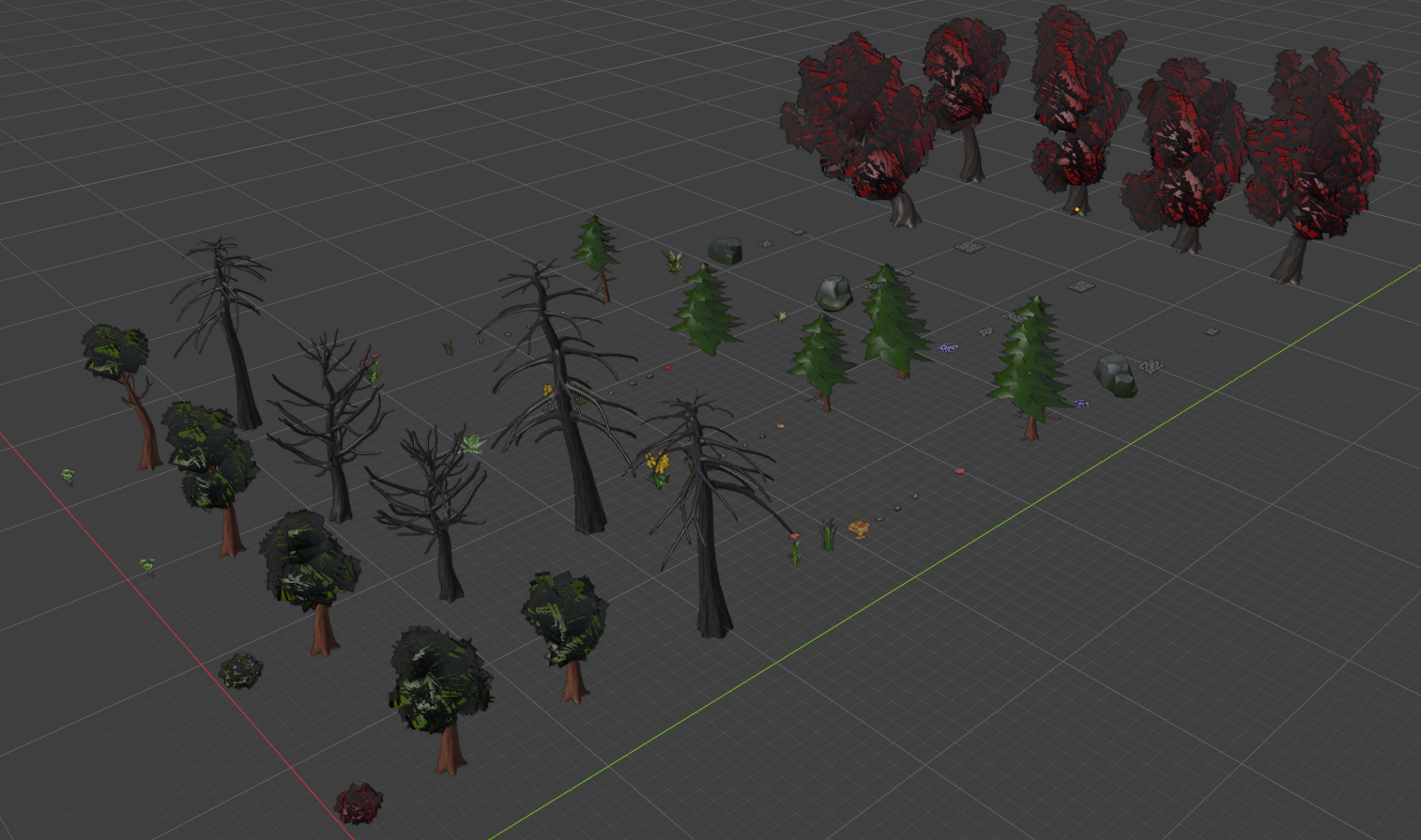
The list shows all Collections in the scene. Collections are automatically arranged so you can easily inspect each asset. You can reorder list items and the scene view will also be updated.
Columns and Padding fields help you configure how objects are layed out on the XY plane.
Click the Arrange Gallery button to reset object placement.
Note
The automatic arrangement works only in the XY plane. If you move objects in Z axis, it will not get reset.
Note
Contrary to typical asset export workflows, asset collections do not rely on object pivots. This means, your assets do not need to be placed in Scene origin (0, 0, 0) in order to correctly export. Liminal uses Collection Offsets for that. See Blender Collections documentation for more information.
Instance Setup section
When Collection is selected in either Gallery List or in Scene Outliner, you can tweak instance settings in this section.
You can quickly set a Collection Offset to the 3D cursor, Active object or align it to the Bouding box of the Collection. In other words, this will be a pivot point of an Asset that you added to your level.
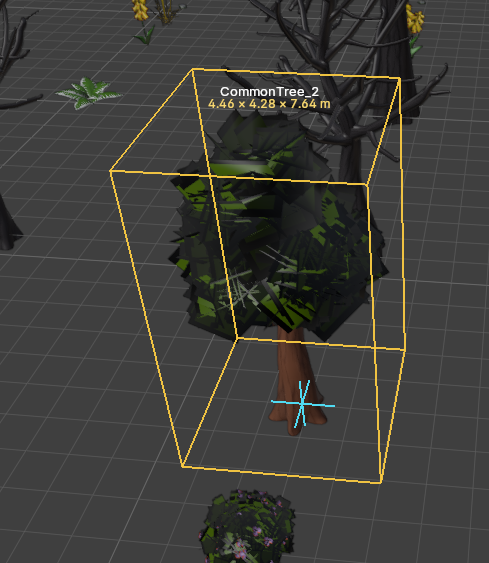
The Show Asset Bounds draws the Collection Bounding Box and Collection Offset in the viewport.
Materials section
When preparing an Asset Pack for use in Liminal Editor, it is important to setup materials correctly. Otherwise exported levels will have missing materials or there will be duplicates. Provided utilities will help you manage materials properly.
The Deduplicate Materials button removes any duplicated materials (ending with .001, .002, etc ) and reassigns original ones instead.
To automatically delete orphaned materials(not assigned to anything), toggle the Purge orphans checkbox.
If your assets use custom materials, you need to adopt them first. To do this do the following:
In Blender
- Make sure your Game Configuration points to right game config.
- Click Export Unmanaged Materials
In Godot
- Switch to Godot and Sync Workspace
In Blender
- Switch back to Blender and press Reload Manifest
Read more about working with materials, Here.
Working with Asset Packs
Once an Asset Pack has been created, link the pack .blend into your level with File›Link.
Warning
Use Link, not Append. An appended asset is copied into the level file. It no longer follows changes to the pack, and it doesn't show up in Imported Asset Packs or in the Entity Palette.
Warning
Blender links other .blend files using absolute paths. This may break if you use Version Control Systems and move your project from one Computer to another. To fix this, make linked paths relative: File›External Data›Make Paths Relative and save the blend file.
Editing a linked pack
Linked assets are read-only in the level file. The Instance Setup section shows "linked (read-only)" for them. To change an asset's pivot or contents:
Asset Pack .blend file
- Open the pack, adjust the asset (for example its pivot in Instance Setup) and save.
Level .blend file
- Press Reload Linked Packs in the Imported Asset Packs section of LM Config. Blender reads a linked pack only when the level is opened, so edits made elsewhere stay invisible until you reload. Export reloads packs automatically.
You don't need to unmark and re-mark the asset: its pivot can be edited while it is marked.
How To - Using External Asset Pack
Problem: An asset pack obtained from a marketplace. Each mesh is a loose gltf file. We want to incorporate those asset into our pipeline and use them to decorate levels.
This How To presents steps performed in two Blender instances opened at the same time. One instance is the Asset Pack you will be preparing. The other instance is operates on the blend file of your level.
Note
For demonstration purposes we are using a Stylized Nature MEGAKIT from quaternius. Available free of charge, CC0 License.
To do this, let's follow these steps:
In Blender
- Create new blender scene, delete default objects and the default Collection
- Select Game Configuration and Reload Manifest. Check Quickstart page if you don't have any game configurations yet.
- Import loose asset files from fbx/gltf/obj/etc
- Make sure there are no collections in the outliner and press Create Assets From Loose Objects
- Finish the setup. If necessary, setup correct collection offsets in the Instance Setup section.
- If imported assets share materials, It will be good to clean them up. Press Deduplicate Materials
Warning
This is a good moment to spend some time and make sure your material collection in this asset pack is in pristine. No unnecessary or duplicated materials. Liminal will help you move those material to your Godot but it's up to you to keep things tidy and organized. It's always a good idea to keep materials organized. Chaos impacts project maintainability nad in some cases - runtime performance.
In Blender
- (optional) It's time to adopt your materials. Press Export Unmanaged Materials Do this only if the asset pack you prepare should add new materials to your game project.
In Godot
- Switch to Entities window and Sync Workspace. Wait until done.
Asset Pack .blend file
- Click Reload Manifest. Save the blend file and quit.
Level .blend file
- File›Link, open the Asset Pack's blend file, navigate to Collection and select items you want to use.
- Linking automatically adds those assets to your scene at 3D Cursor position. Delete them. If everything went well, you can see that the LM Config panel now contains Imported Asset Packs section with numbers of linked assets for you to use.
- You are now ready to place newly linked assets in your level. To do this, press Shift⇧+E while the LM Toolkit tool is active. This will bring the Entity Palette UI. Your assets will be there.